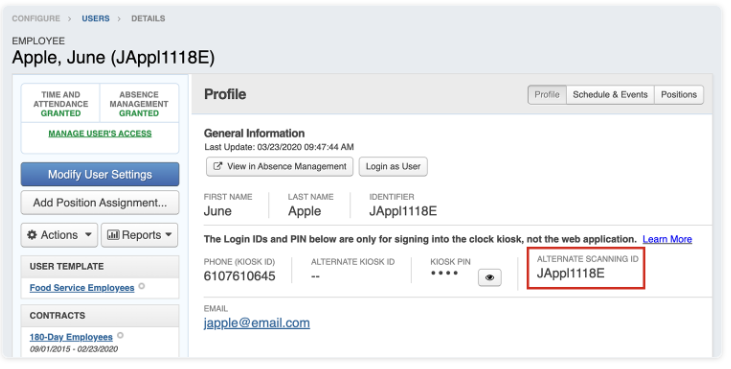
Using Existing ID Badges
There may be a time when you would like to use an existing employee ID badge to scan in at a kiosk, but the number associated with the badge is different from the user’s time and attendance ID. This article will show you how to add an alternate ID to a user so that either ID (the time and attendance ID or the ID number on the existing card) will be associated with that user.

Search for a specific user or use the checkboxes to filter a certain group of users. Choose which user that you would like to give an alternate ID number and click the Edit button beside their name.
The user's Details page will open. Select Modify User Settings. A pop-up window will appear. Under “Step 1 - User”, you will see a field titled “Alternate Scanning ID”. Enter the number from the existing ID into the “Alternate Scanning ID” field.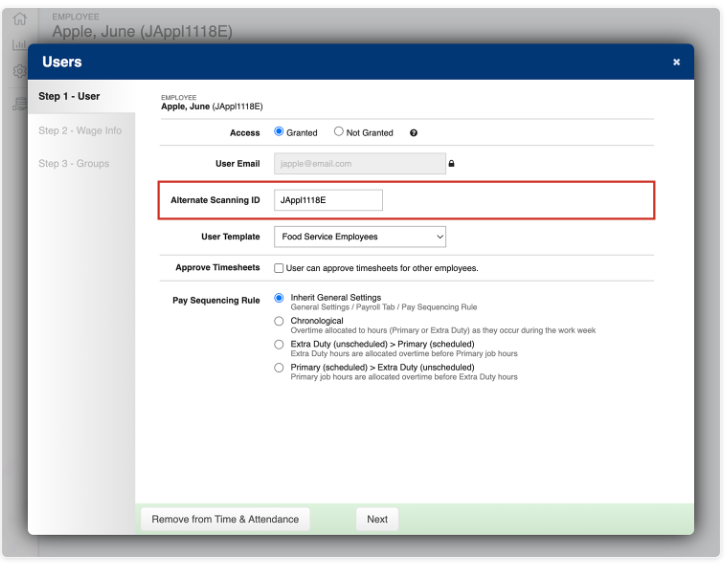
Navigate through the rest of the steps by clicking Next and finally Finish and the user will now have an alternate ID associated with their profile.