Touch each of the four corners starting with the top left in a clockwise circle to exit that screen. (here's a video if you'd like to see it in action). Your sequence will be:
-
Top left
-
Top right
-
Bottom right
-
Bottom left
It will then ask you for an exit code (1492).

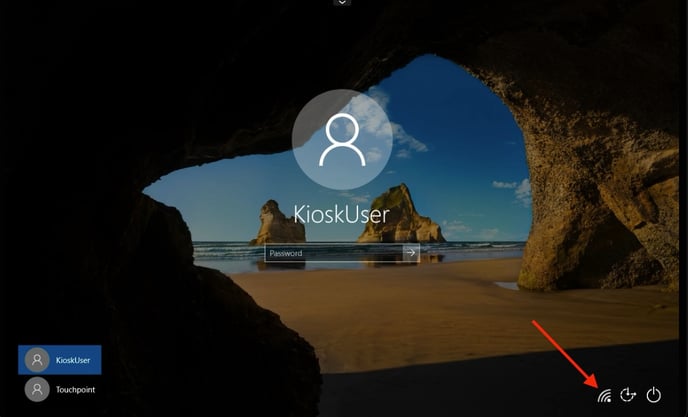
Touch and slide up anywhere on screen to reveal the Windows Login Page. You will find in the lower right hand corner an option to reboot the device.
Once exited kiosk mode if you are connecting the device to Wi-Fi you can do it at the sign in screen. For best results use an IoT network that does not require a username, password only.
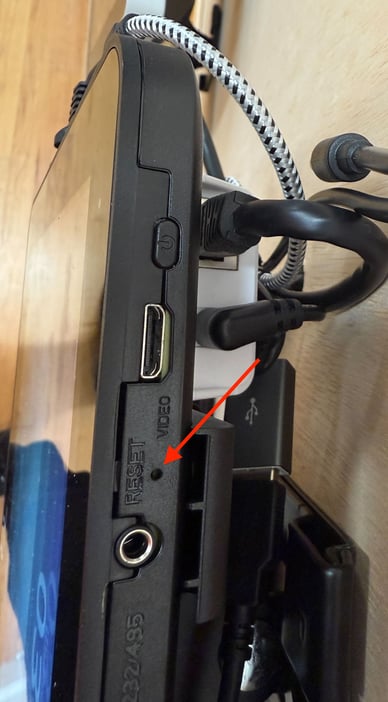
* If you are working with the TCLN model (timeclock lite) and it is unresponsive, you can use the small reset hole on the top left of the device to reset it.
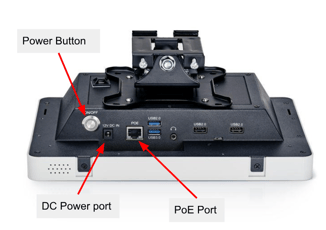
Please note: the power button is disabled so the clock cannot be powered off inadvertently.
* If you are working with the TCSN model (timeclock standard) and it is unresponsive, you can use the power button on the bottom of the device to reset it.