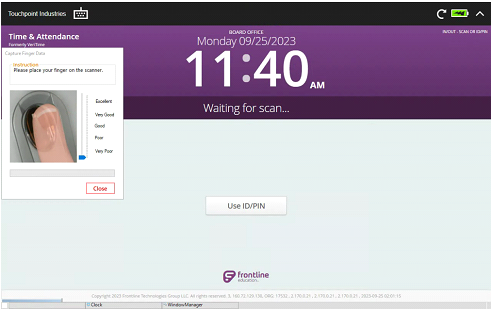
Using Touchpoint Biometrics enables a confident, convenient, and secure way of allowing employees to clock in and out every day. Here are some things to consider while using and setting up Touchpoint Biometrics:
- When creating your Touchpoint Biometrics Enrollment credentials make sure that you store the credentials somewhere you can easily access them when you enroll new biometric users.You need a password to get into the enrollment screen (admin use only).
- If you lose your credentials, you can always ask Touchpoint support for help recovering them.
- When exporting employee data from Frontline, make sure to ONLY include users who will be using biometrics to clock in and out. Extra employees included in the list who are not using biometrics may make it more time consuming to enroll users in the application.
- Instruct employees to wash their hands before capturing their fingerprints to secure an accurate fingerprint image. This will reduce the number of failures while trying to clock in and out.
- It is recommended to clean the biometric reader glass before every use with an alcohol wipe to ensure a clean surface for scanning, however, we know it may not be practical, so even having wipes, tissues, or a rag available near the Smartclock in case someone is struggling to scan is strongly recommended.
- Not all employees will have a defined fingerprint that can be captured or read by biometric readers. In these instances, the Touchpoint Biometric Smartclocks are equipped with proximity scanners for proximity badge authentication and a touch screen for ID and Pin authentication.
- Food Service & Custodial Staff is where we see this to be the case
- Have employees place as much of their finger on the reader as possible while scanning. Our best recommendation on how to scan your finger would be to place the crease of your last knuckle on the front of the bezel of the biometric reader, and then to roll your finger forward until it is flat against the glass of the biometric reader.
- Refer to the images below as examples:
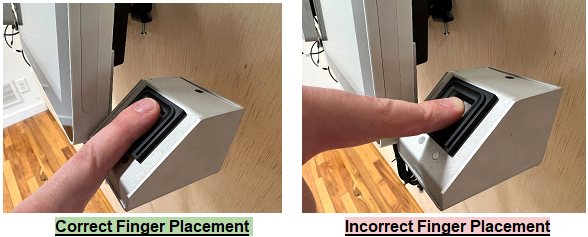
- Refer to the images below as examples:
- Inform employees to hold their finger on the reader for up to 6 seconds during every scan. This will allow for the reader to perform a deep scan, ensuring the best accuracy.
- Make sure the Biometric Scanning Window is visible on the Smartclock before trying to scan. It is required to be visible for the application to function.