
To import your Alternate Scanning IDs into Frontline’s Time and Attendance portal, you will need to compile a spreadsheet. If you are able to use employee’s Identifiers on the spreadshet, you are ready to import, and can jump ahead in this document to the “Importing Alternate Scanning IDs” section. However, many systems would be using first name and last name along with their badge ID, and not necessarily their Identifier. This would lead us to an additional step before importing, matching the user’s names with their Identifiers.
To do this, you would need to create a report in Frontline’s Absence Management system. Here
is how you would do that:
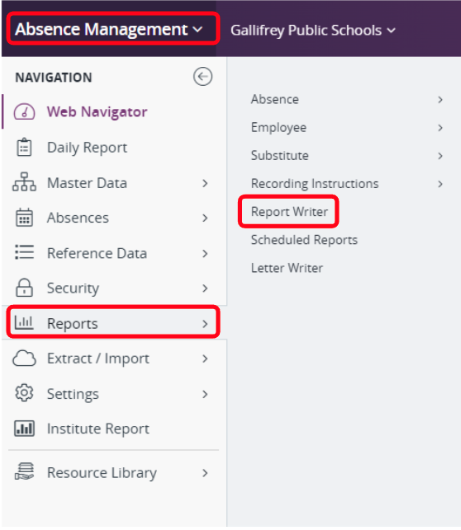
With administrative access, sign into your Absence Management account, and navigate to
Reports > Report Writer
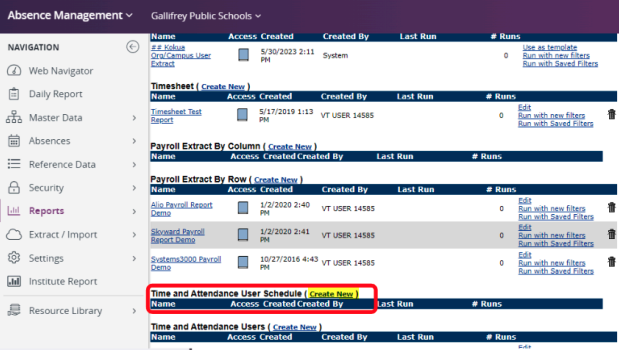
Scroll down to “Time and Attendance Users (Create New)” and click the “Create New” hyperlink
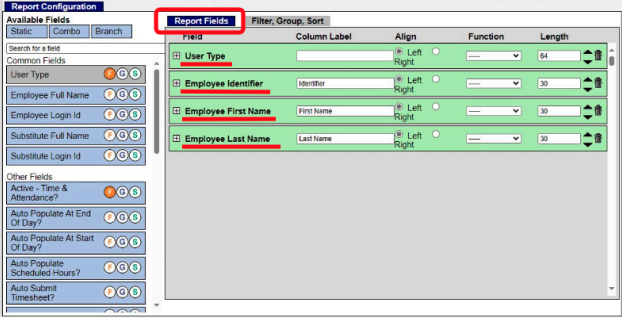
Making sure you’re on the “Report Fields” tab, Drag “User Type”, “Employee Identifier”, “Employee First Name”, & “Employee Last Name” from the left side into the gray square.
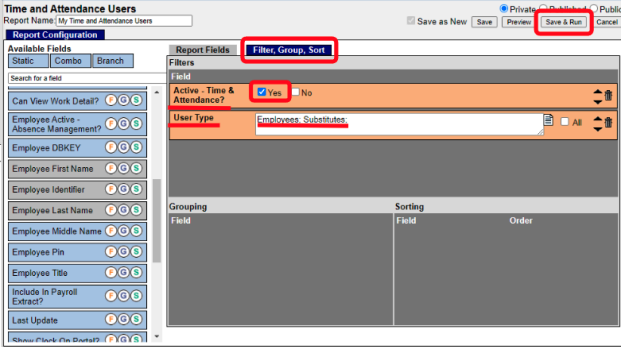
Select the “Filter, Group, Sort” tab
Drag and drop “Active - time & Attendance?” and “User Type” into the Filters field
Deselect the “No” checkbox if you want active Time and Attendance employees only, or keep them both checked if you want all Employees Type, then select “Employees” in the User Type text box if you want employees only.
Type, then select “Substitutes” in the User Type test box if you also want substitutes
Select “Save & Run"
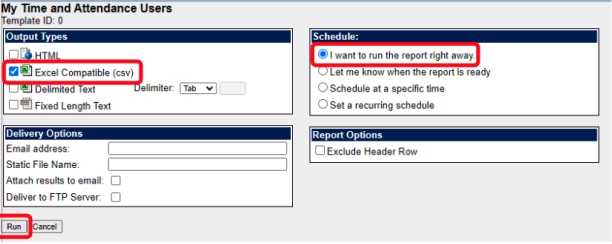
Select “Excel Compatible (csv)
Select “I want to run the report right away” if you are ready for the data.
If you select “Let me know when this report is ready”, make sure you put an email address in the “Email address” field under “Delivery Options”
Click “Run”
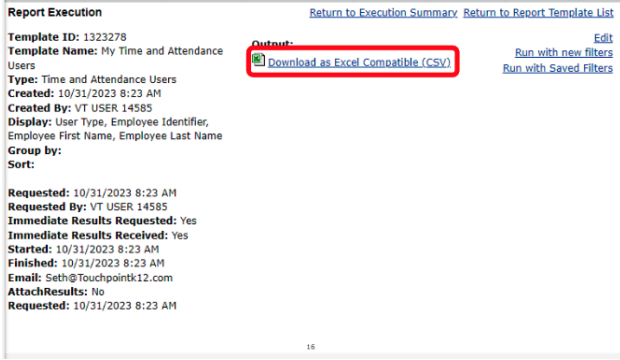
Click the “Download as Excel Compatible (CSV)” hyperlink to download, and then open the “My Time and Attendance Users” Excel Spreadsheet
*** From here, we need to essentially combine the two spreadsheets so that we’re left with 3 columns: User Type, Employee Identifier, and Alternate Scanning ID. This can be done any way that you want, however, below are outlined steps to use the “VLOOKUP” function in Excel. If you do not feel comfortable doing that, you can manually transfer the data from one spreadsheet to the other, or you can always reach out to Touchpoint for assistance.
The biggest issue arises if the “First Name” and “Last Name” columns pulled from Time & Attendance does not match the manually entered data from employees onto the Prox Intake Form Spreadsheet, so even doing the VLOOKUP steps, you may find outliers that do not match that will have to be entered manually. Here are the VLOOKUP steps:
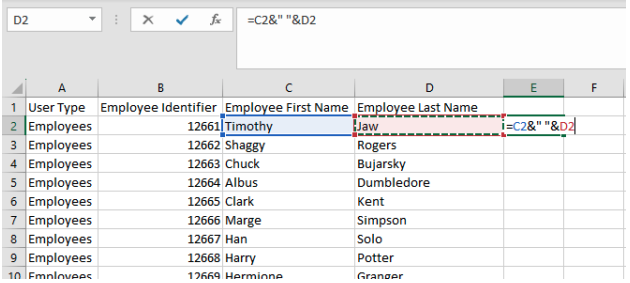
First, you will need to combine the first names and last names into one column: Select the E2 column, and type =C2&” “&D2 and hit enter
Double click the bottom right corner of the E2 cell to autofill the rest of the column
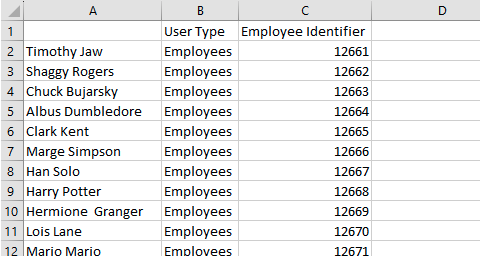
Insert a column to the left of the “User Type” column, copy the old Column E (now column F), and then Paste Values Only into the new “A” column
Delete Columns D, E, & F
You should be left with your spreadsheet looking like this:
Now, open the “Prox Intake” spreadsheet from Touchpoint, so we can do the same thing to that spreadsheet
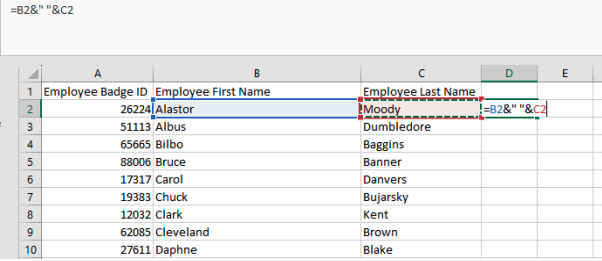
To combine the first names and last names into one column:
Select the D2 column, and type =B2&” “&C2 and hit enter
Double click the bottom right corner of the D2 cell to autofill the rest of the column
Insert a column to the left of the “Employee Badge ID” column, copy the old Column D (now column E), and then Paste Values Only into the new “A” column
Delete Columns C, D, & E You should be left with your spreadsheet looking like this:
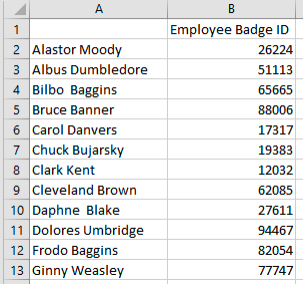
Now to do the “VLOOKUP” steps, go back to the “My Time and Attendance Users” Excel Spreadsheet
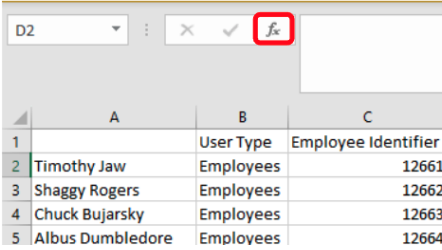
Select Column D2, and select the function icon
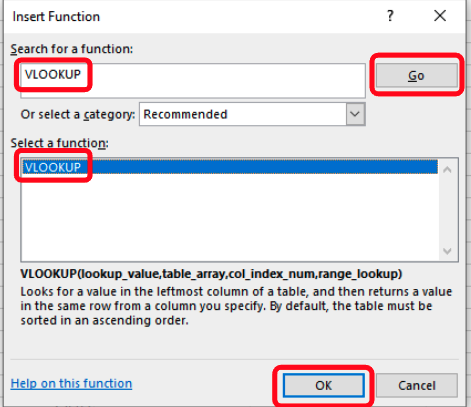
Type “VLOOKUP” in the search function, select Go
Select VLOOKUP under the “Select a function” area, and select OK
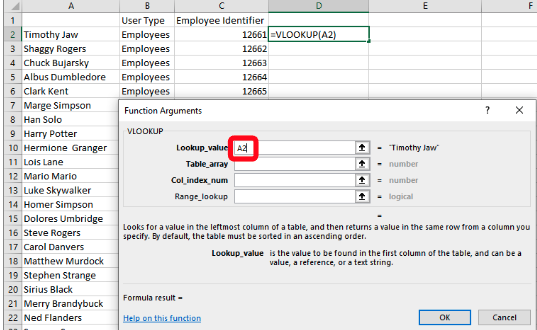
In the “Lookup_Value” text box, select column A2 on the “My Time and Attendance Users” Excel Spreadsheet
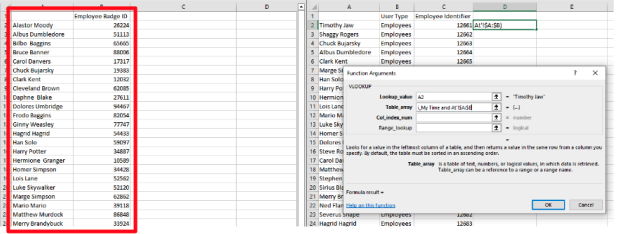
In the “Table_array” text box, select columns A & B on the “Prox Intake” Excel Spreadsheet
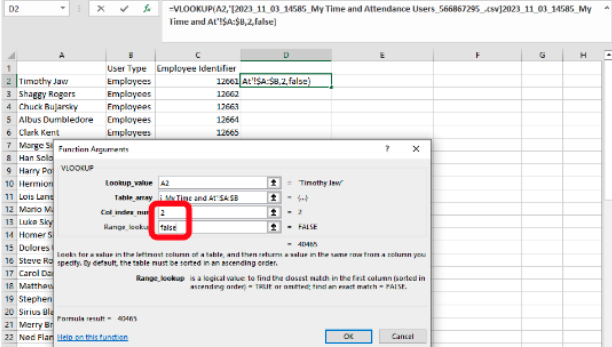
In the “Col_Index_num” text box, type in “2”
In the “Range_lookup” text box, type “false”
Select OK
Double click the bottom right corner of the D2 cell to autofill the rest of the column
Copy column D and Paste Value Only back into column D
Delete Column A Type “Alternate Scanning ID” in cell C1
***The “User Type” in Column A should be singular, so either “Employee” or “Substitute”. If it populates as a plural with an “s” at the end, change them all to singular. This can be done quickly by changing 1, copying it, and then pasting it to all of the other cells at once. You should be left with a spreadsheet that looks like this:
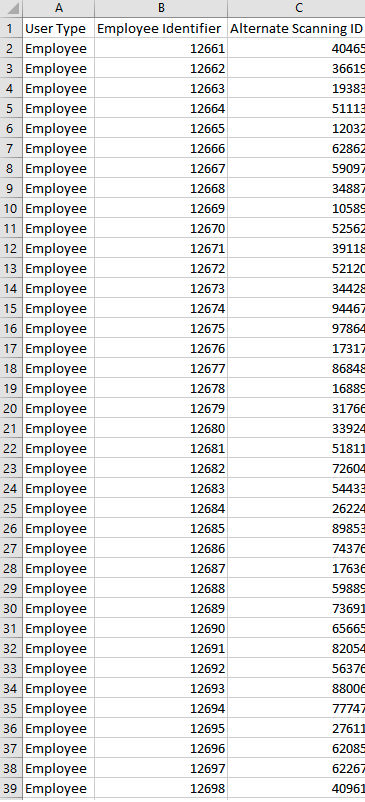
This spreadsheet is now ready to import into Frontline’s Time & Attendance Portal!!
Importing Alternate Scanning IDs
To import the Alternate Scanning IDs, you would need to sign in to the Time & Attendance platform
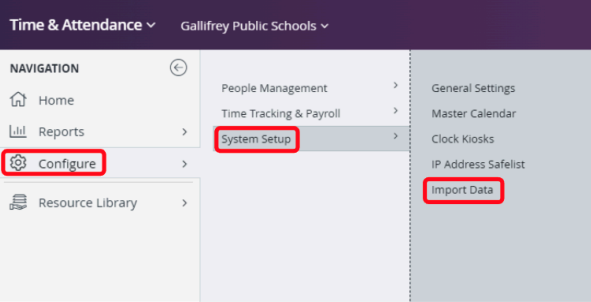
Select Configure > System Setup > Import data
Click the “New Data Import” button at the top right of the screen
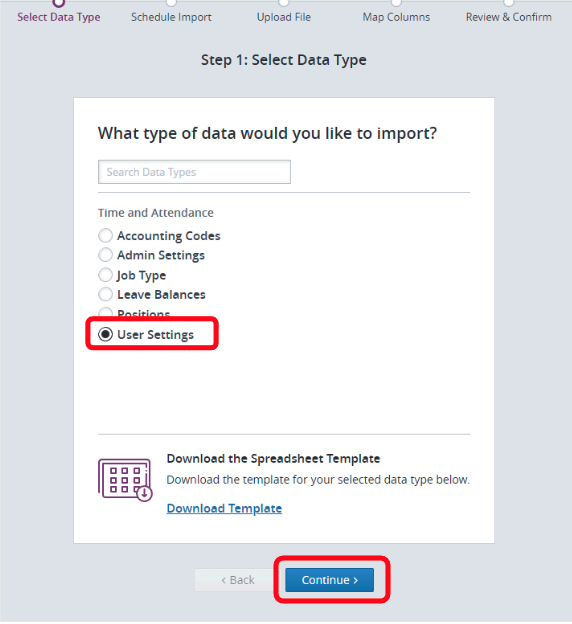
Select “User Settings”, and then “Continue”
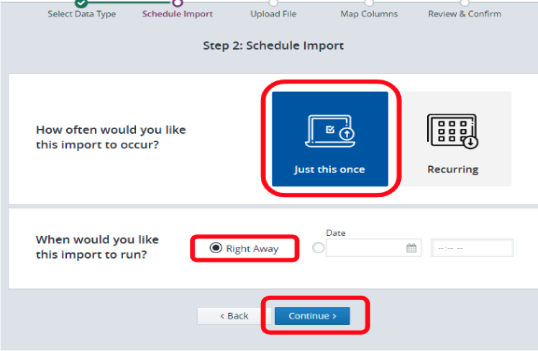
Select “Just this once”, “Right Away” and then “Continue”
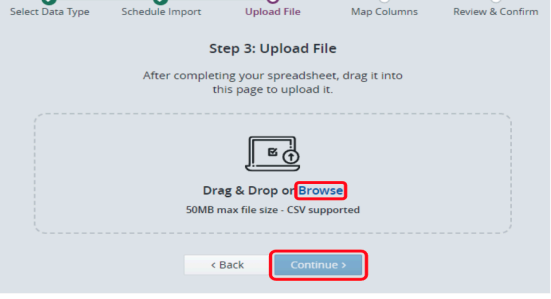
Either drag and drop the “Employee Alternate Scanning IDs” Excel file into the dotted square, or select the blue “Browse” text, navigate to the Excel file, and select it.
Select Continue
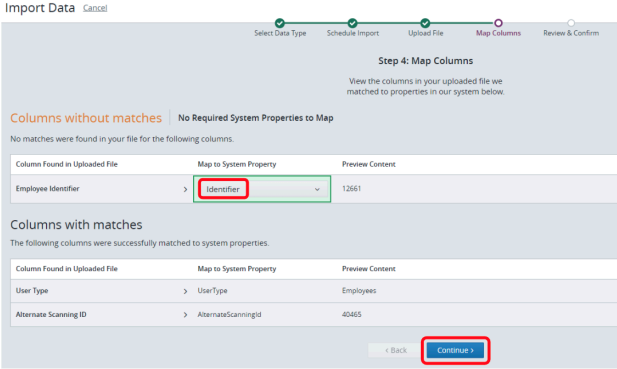
Select “Identifier” in the drop down under “Map to System Property”
Select Continue
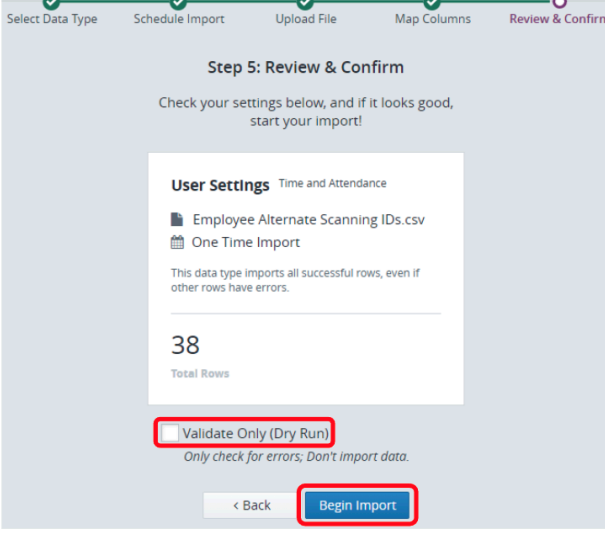
It is recommended to check the box for “Validate Only (Dry Run) to make sure the data is good before importing it.
If you feel confident with your data, you can skip that and just select “Begin Import”
If you do check the box for “Validate Only (Dry Run), follow the instructions provided by Frontline on how to fix any errors you might encounter, and then Import that validated data.
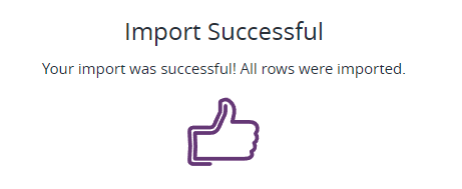
All of the employee alternate scanning IDs are now successfully entered into the system!