
Creating a New Kiosk
(Click HERE for the link directly in the Frontline Learning Center)
Getting Started
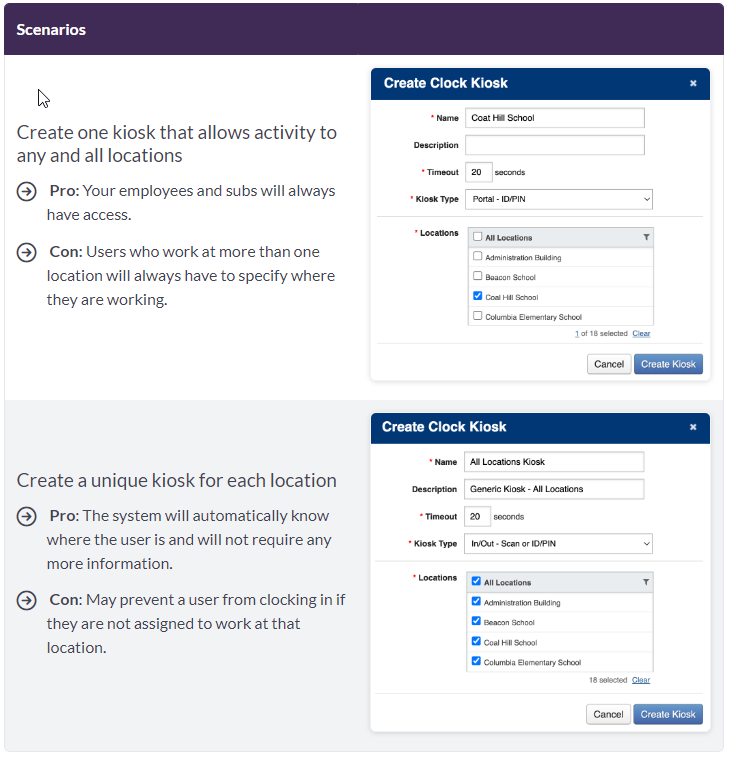
First consider the type of kiosk settings your organization may require. Options can include:
- Kiosks with restrictive settings to only allow clock events for positions at a specific locale.
- Kiosks without restrictions, allowing clock events from any kiosk at multiple locations.

Create Kiosk

Navigate to the Clock Kiosks page and select the Create Kiosk button.
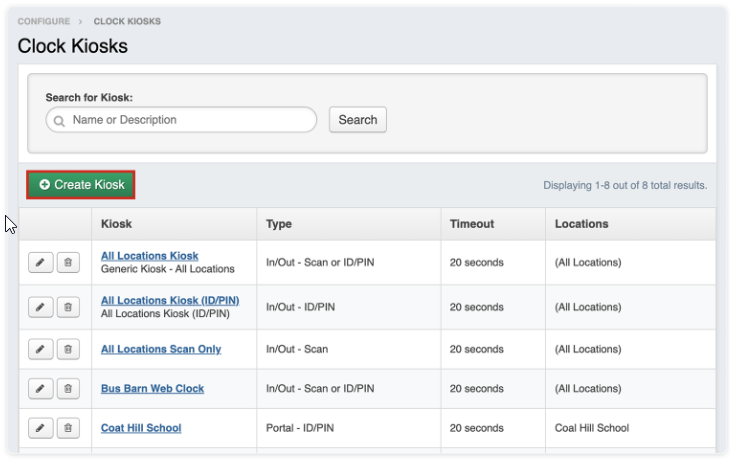
This selection opens the "Create Clock Kiosk" wizard. Enter information in each field, as noted below:
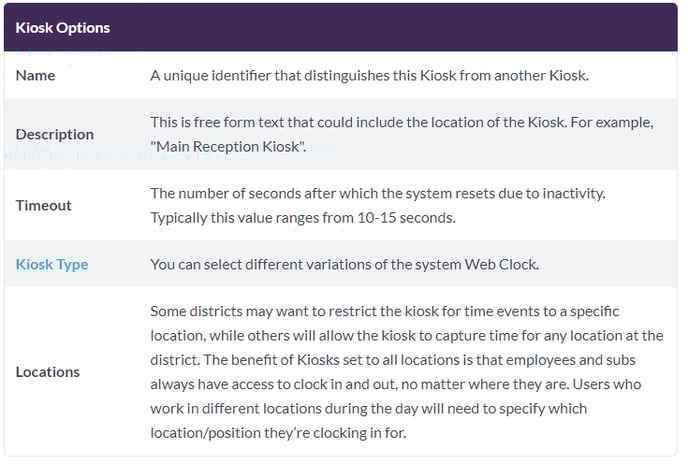
When finished entering field information, click Create Kiosk. Based on this, you can design one of two general kiosk types:

Review Configuration Settings
Once you create the Kiosk, you will also want to review your system's configuration settings.

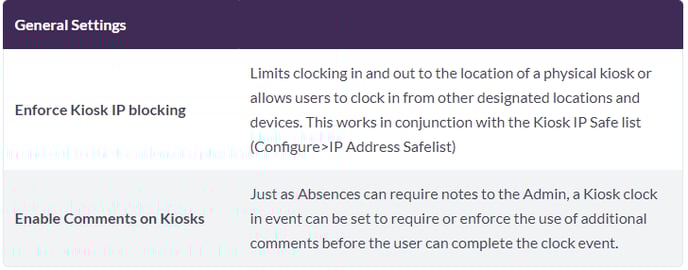
The "Time Events" tab will open by default on the General Settings page. Two specific fields are important in relation to the new kiosk setup, as outlined below:
Launch a Kiosk
To launch a specific kiosk, return to the Clock Kiosks page and click the name (blue link) of the kiosk you would like to launch.
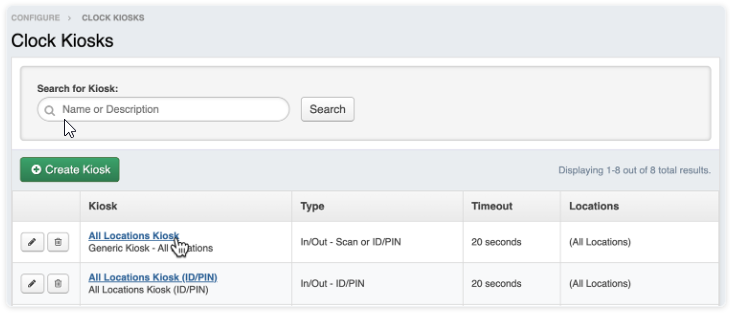
This selection opens the kiosk in a new browser tab.

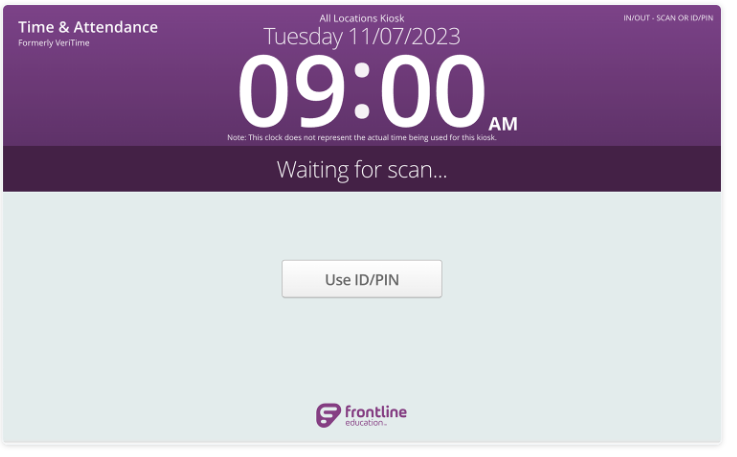
Any of these settings can be edited at a later time. But if you change the Kiosk Type, you will need to relaunch the kiosk window on its respective computers and create a new shortcut once changes have been made. It is recommended that you consult your IT department to set up a computer to act as a kiosk. They can save a shortcut on the computer's desktop that automatically opens the proper kiosk, and they will often write a script to auto-launch the shortcut if the computer is restarted.