
Unboxing the device and all components.
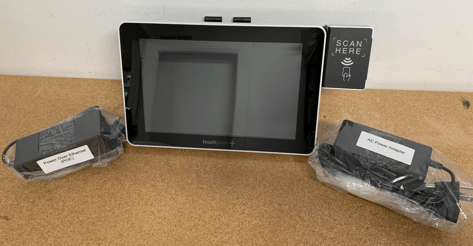
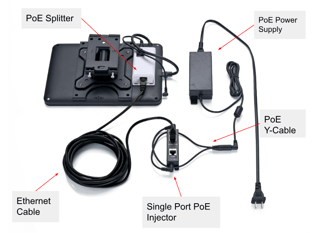
You will find the SmartClock, an AC power cord, a single line PoE injector with power adapter.
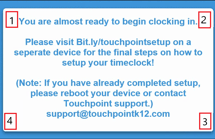
Once the device has booted you can exit kiosk mode, sign in with the Touchpoint admin account and configure network or Wi-Fi settings and add your district's Kiosk URL to each device.

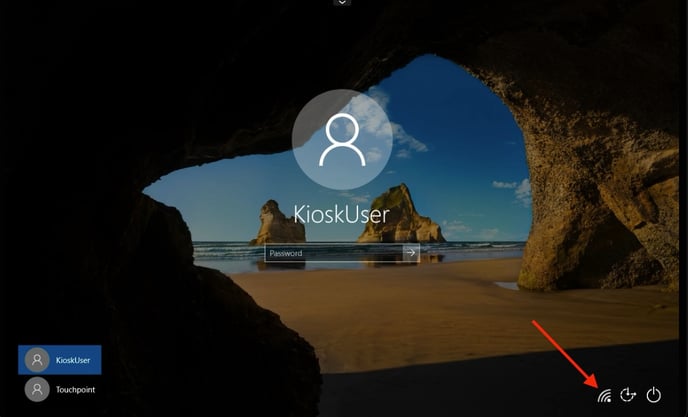
- Once exited kiosk mode if you are connecting the device to Wi-Fi you can do it at the sign in screen. For best results use an IoT network that does not require a username, password only.
- Sign into Touchpoint profile
- Once you sign in, you can configure the Wi-Fi or your wired network connection like you would any other Windows machine
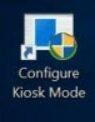
Configure Kiosk Mode
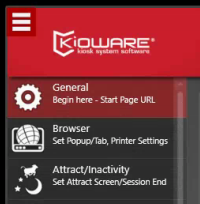
Choose the “Configure Kiosk Mode” icon in the upper left corner of the desktop. (Kiosk URL's are created and accessed in your Frontline Time and Attendance portal)
Make sure you are in the “General” section, which is where you will enter the Kiosk URL.
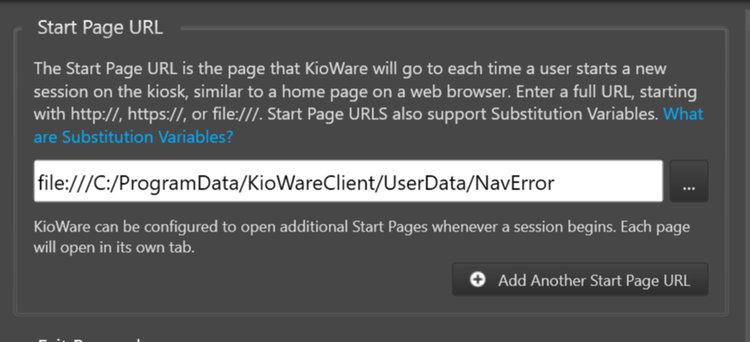
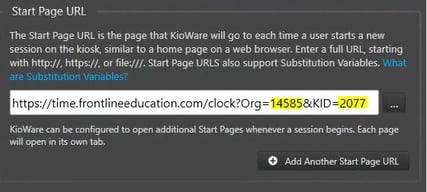
Enter the Kiosk URL for this time clock (there is a copy and paste me text file on the desktop to assist with formatting). Ensure the ORG ID and the KID are for your district and clock, so your clock can access your Frontline account.
To save the settings, simply exit the kiosk app by clicking the “X” at the top right of the page.
Restart the time clock to enter kiosk mode. Select the “Start Kiosk Mode” icon in the upper left corner of the desktop.

The device will power cycle and reboot into the Frontline Kiosk Mode for you to begin clocking in!
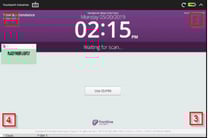
That's it! When you see a screen similar to this one, you have successfully entered Kiosk Mode. Note - the location just above the date/time should be specific to your school.

As part of your set up process please be sure to scan one of your ID badges on the reader of the clock.
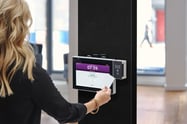
Successful scan - you are all set!
Unsuccessful scan with error User Undefined or Not Accepted...
- Select the "Use ID/PIN" option on the kiosk screen and make sure your curser is in the Kiosk ID/Phone Number field and scan your badge. The number it displays is what is needed to be entered in that user's Frontline Time and Attendance account in the Alt Scanning ID field.
- If the number you see in that field is not the number you would expect your card to be outputting (most often, it is the number printed on your card), please contact Touchpoint Support
Prox Reader does not recognize the scan at all - contact Touchpoint tech support for assistance.
If your district already has a database listing the output of each card, there is an option to import that information directly in to Frontline. Please be sure to first verify that the Touchpoint prox reader displays the same number you have in your database.
No database, no problem! We have a prox intake form that we can set up on the clock to easily create a spreadsheet of the information. Click HERE for a link describing that process.
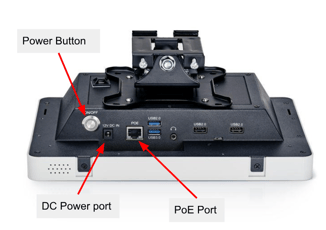
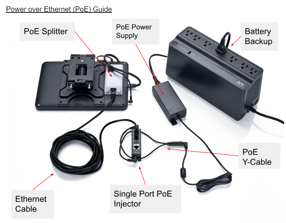
Either the AC Power Adapter or the single line PoE injector needs to be used to power the device.
Potential symptoms of insufficient power...
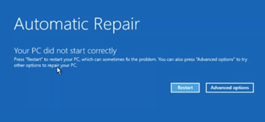
- Device failing to fully boot or gets stuck in at an Auto Recovery screen
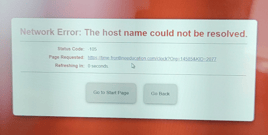
- Not connecting to the network even with a valid internet connection
Resolution: Use one of the two suggested methods to power the device then reboot.
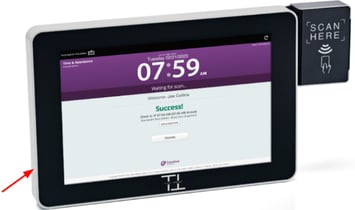
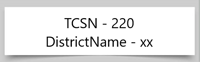
*When contacting Touchpoint tech support, please be sure to include the clock ID of the clock you are working with. The clock ID is located on a white sticker on the left side of the clock. Example, DistrictName-xx
You can contact Touchpoint Support by phone, email, or LiveChat.
- https://www.touchpointk12.com/
- support@touchpointk12.com
- (800) 970-8940 ext: 2
If you need to purchase proximity cards or additional clocks, please contact Ben from our sales team at Ben@touchpointk12.com
Some other helpful links
Clock is restarting and failing to boot into Windows